Before you start
You need a Webflow site with a published form and a FormTriage account. Give the Webflow form a distinct name if your site has several forms; otherwise Webflow may label them all “Email Form.” FormTriage needs a unique HTTPS ingestion URL for its Webflow source.
Connect the form
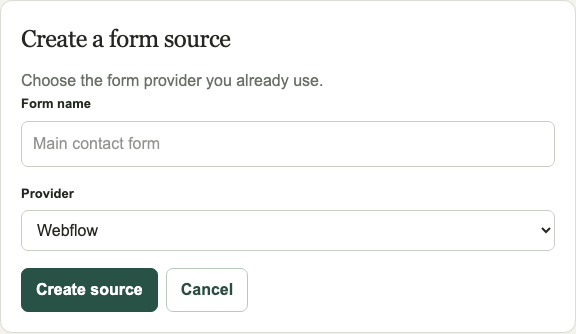
- Create a Webflow source. In FormTriage, open Forms, choose New form, name it, select Webflow, and choose Create source. Copy its Ingestion URL.
- Add the Webflow webhook. Select the form in Webflow’s canvas or Navigator and open its Settings panel. Beside Send to, choose Webhook, paste the ingestion URL, and save. Keep Webflow’s own form handling enabled if you want its dashboard copy of submissions too.
- Save the secret. Webflow displays a webhook Secret key once. Store it securely and enter it in FormTriage’s Signature verification field for this source. Never paste the secret into a public page.
- Publish and test. Publish the Webflow site and submit a message through the live form. In FormTriage, open the source’s First submission setup to confirm receipt and processing status. Use Inspect latest submission to check the original message and classification.
Use the Webhook destination. Webflow’s Custom action sends the form directly to another service and bypasses Webflow’s normal handling. The webhook route described here preserves the normal submission path.
Check the result
Try two safe sample messages: one sales inquiry and one urgent customer issue. Both should appear in the inbox, each with its original text. Their category and attention may differ. If a message is ambiguous, FormTriage should show it in Needs review rather than hide it.
If the test does not arrive
- Confirm the form is published and the webhook is attached to the form you submitted.
- Check the webhook URL and the source’s Last received status.
- If Webflow reports a failed delivery, verify that the secret saved in FormTriage matches the Webflow Secret key. A mismatch causes a signature rejection.
- Use Webflow’s form submission and webhook details to check whether Webflow recorded the test. If it did, inspect delivery before changing the form itself.
Provider instructions
Webflow’s form setup guide shows the current interface. Its webhook documentation explains payloads and signatures.