Before you start
You need a published Tally form and a FormTriage account. Tally offers webhooks on its free plan. Give your Tally fields clear labels such as Name, Email, and Message so a person can read the original submission easily in the inbox.
Tally formWebhook integrationFormTriage inbox
Connect the form
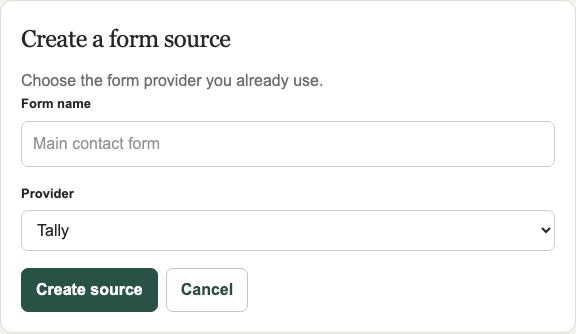
- Create a Tally source. In FormTriage, open Forms, choose New form, give the source a name, choose Tally, and select Create source. Copy the Ingestion URL.
- Add a webhook in Tally. Open the published form’s Integrations tab, choose Connect for Webhooks, and paste the ingestion URL as the endpoint.
- Set a signing secret. In Tally’s webhook settings, add a signing secret. Save the same value in FormTriage under Signature verification for the Tally source. This lets FormTriage reject requests without a valid Tally signature.
- Send a test response. Submit the published form. In FormTriage, open the source’s First submission setup to confirm receipt and processing status. Use Inspect latest submission to check the original response and classification. Verify that the email and message fields are readable.
What happens to uncertain messages? They stay visible in Needs review with the original response. A classification delay or failure should not remove the submission.
If the test does not arrive
- Check that the form is published and the webhook is active in its Integrations tab.
- Use Tally’s webhook event log to see the delivery response. Tally expects a successful 2xx response within 10 seconds and retries failures.
- Confirm the endpoint is the exact ingestion URL for your Tally source and both signing secrets match.
- If the message arrives with unexpected field names, check the labels in Tally and the original submission in FormTriage before changing your form.
Provider instructions
Tally’s official webhook guide includes illustrated setup, event logs, and retry behavior.