Before you start
You need a published Framer site with a form and a FormTriage account. FormTriage receives submissions through a unique HTTPS ingestion URL for each form source. Do not put that URL in screenshots or public documentation: anyone with the URL could send submissions to it.
Framer formWebhook destinationFormTriage inbox
Connect the form
- Create a Framer source in FormTriage. Open Forms, select New form, give the source a recognizable name, choose Framer, and select Create source.
- Copy the ingestion URL. Open the new source and select Copy URL. This URL belongs to this source; use a separate source for each form you want to identify independently.
- Add a destination in Framer. Select your form on the canvas. In the right sidebar, choose Add… beside Send To, then Webhook. Paste the ingestion URL. Framer requires an HTTPS destination.
- Set up signature verification. If you use a signing secret, create it in Framer, save it securely, and enter the same value under Signature verification for the FormTriage source. Framer requires a secret of at least 32 characters and shows it only once.
- Publish and test. Publish the Framer site and submit a realistic test message. The source’s First submission setup confirms receipt and shows the latest processing status. Use Inspect latest submission to check the original message, category, and attention level once classification finishes.
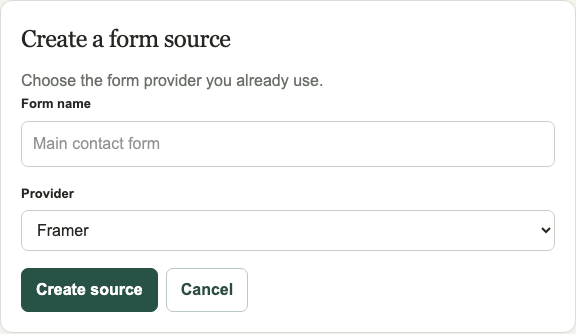
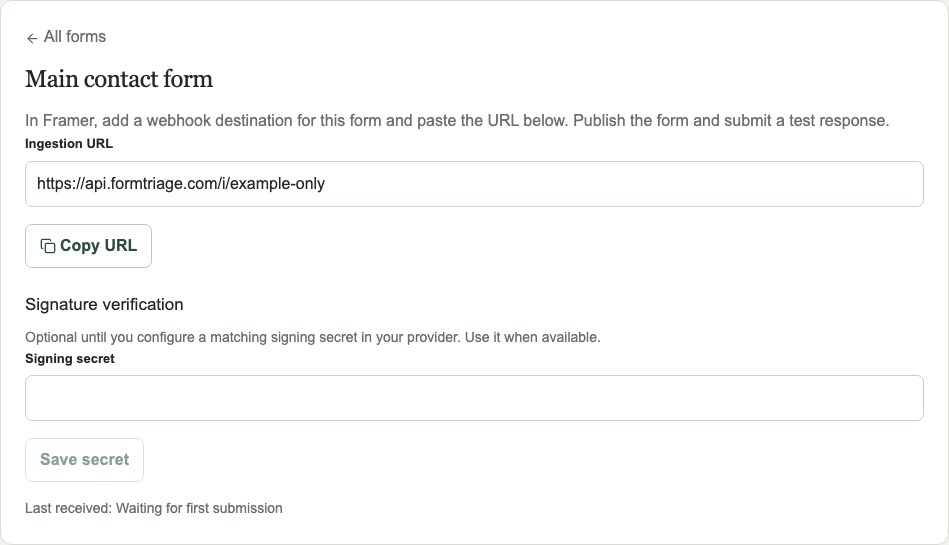
What a test can show. “We need pricing for an API evaluation” may appear as Sales with high attention. “Our production integration is failing” may appear as Support with high attention. A vague message should stay visible in Needs review. Actual results depend on your workspace settings and the message.
If the test does not arrive
- Confirm you published the latest Framer changes and submitted the published form, not only a canvas preview.
- Check the destination is the exact HTTPS ingestion URL for the Framer source. Framer requires a direct successful 2xx response and does not follow redirects.
- If signature verification is enabled, confirm the same secret is saved in both places. A mismatched secret rejects the request.
- Check Framer’s delivery information and the source’s Last received status. A received message can still be waiting for classification while remaining visible in the inbox.
Provider instructions
Framer’s official webhook guide includes illustrated setup steps and current delivery behavior. Review it if the Framer interface has changed.